We really love getting feedback from our members. Your feedback is a major part of the discussion when we are planning future features for ZoomIn. We heard loud and clear from you that you wanted more control over how ZoomIn handles your prints:
We are excited to introduce several new features today that we think will enhance your experience ordering prints of your digital photos on ZoomIn.
Crop In Cart
You asked for more control in how your prints are cropped – and we listened. Very often the size of the prints selected does not match the aspect ratio of the digital photograph you have uploaded. In order to make the photo “fit” on the paper size selected we have to “crop” or “trim” your photo.
Unfortunately, sometimes our automated cropping removed important parts of your photo. Starting today you decide how we crop your photos. In the shopping cart you will be able to see how our default cropping [Auto] will affect your photos.

If you don’t like what you see, you can click the “Auto” box to open up a cropping window. There you can choose to crop the photo “Manually”. Just drag the blue dotted line around your photo to tell us how you want your photo cropped.

Finally if you’d rather not have your photo touched and prefer black bands along the sides of the photo – we can do that as well. Simply select the “None” method.
Add Borders
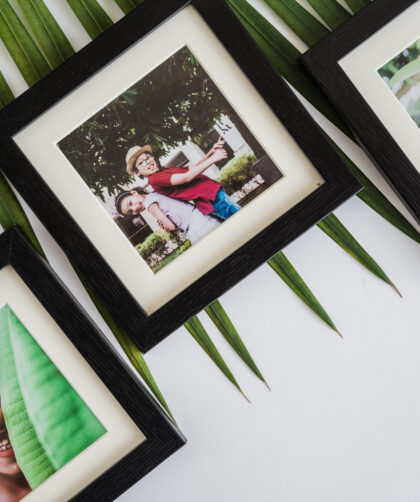
Also in the shopping cart, you can now add simple borders to your photos. We offer either black or white borders that can give a professional framed look to your photos. Black and white photos look great with a white border.
Borders can be added when you are in cropping mode as described above or can be done by selecting the “Border” tab as seen below. Simply select the photos on the left that you would like to add a border too and choose which type of border and click “Submit”. Instant style!
Cropping Photos & Adding Borders in Bulk
Both cropping and adding borders can be done in bulk on all the photos in your shopping cart. Use the new Select All button to select all photos in your cart. You can then control how your photos are cropped and the kinds of borders applied to them by using the Border and Crop tabs.
Color Correction Control
By default, ZoomIn applies Color Correction to all your photos in the printing process. ZoomIn Color Correction (ZCC) is one of the ways we work to deliver the highest possible quality to your photos. Using a combination of manual and automated methods we enhance the color rendering of your photos. ZCC may include adjusting the brightness, exposure and color saturation of your photos.
If you have already applied your own color correction either before uploading your photos to ZoomIn or made adjustments using ZoomIn’s tools you may wish to disable ZCC. In addition, professionals and amateurs who do not want to modify their photos in any way may also wish to disable ZCC.
New Print Size: Introducing 4×5.3
Finally, the last announcement for the day!
We are pleased to introduce a new size: 4×5.3. This new print size allows photos coming from most compact digital cameras to be printed without cropping.
On a 4×6 print – most compact cameras (pixel size 480×680, 768×1024 or 1200×1600, for example) will generate photos that will need to be cropped – sometimes losing as much as 10%. The new 4×5.3 size will allow your compact camera photos to print without cropping.
Try the new size if you do not want your photos cropped, and you do not want white bands on either side of your photo. Just select it from the size drop-down in your cart.
We’re really excited about delivering features that our members ask for. Don’t stop asking. We’ve said this before: we want to be your favorite destination for sharing and printing your digital photos. Tell us what you need us to do to make that happen. Give us your feedback on these new features or features you think we still need to add here.